How to Export Long ChatGPT Chats Without Losing Context
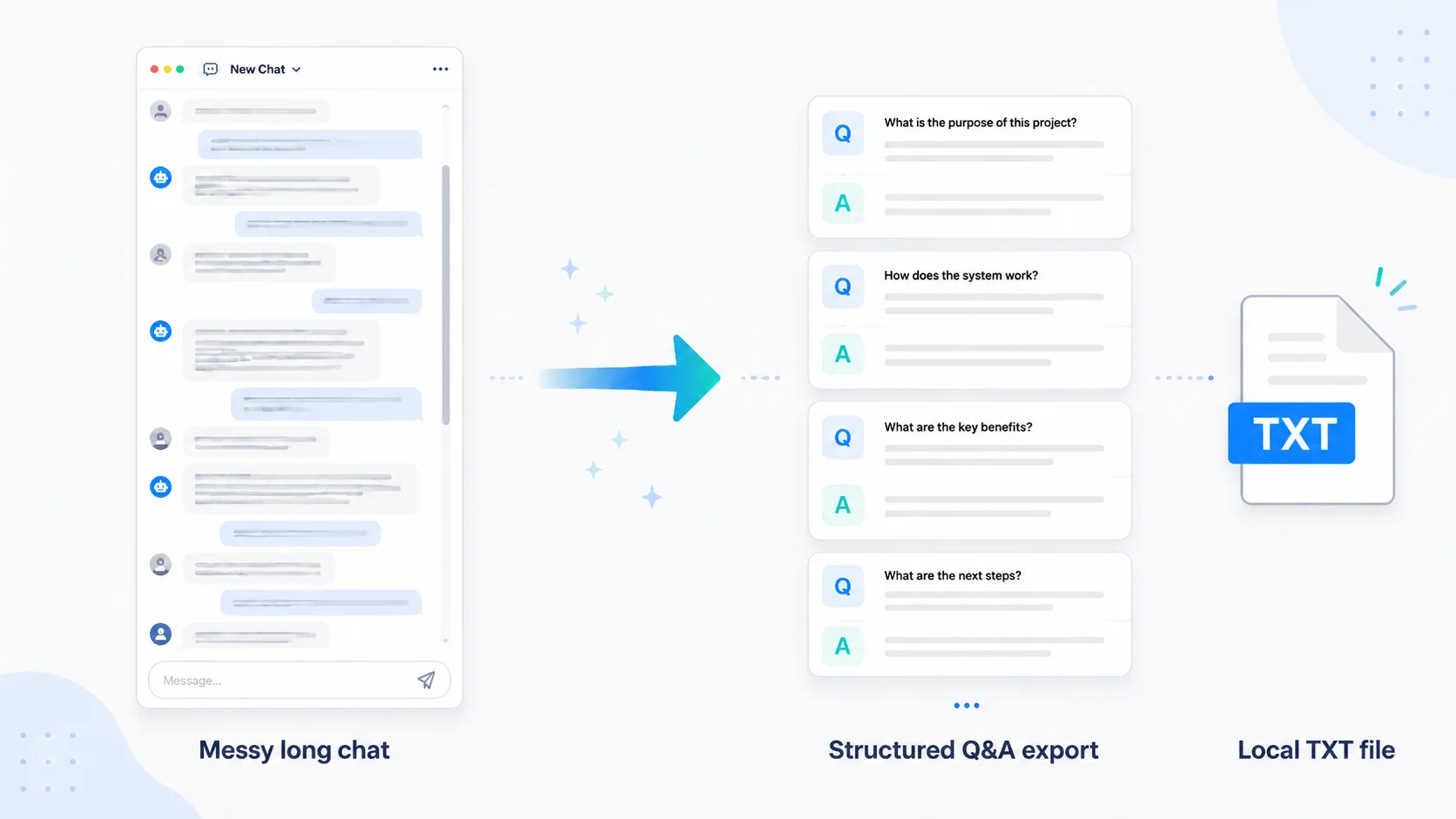
Long ChatGPT conversations are useful until you need to save, search, reuse, or share them.
A short chat can be copied manually. A long chat is different. Once a conversation grows into dozens or hundreds of messages, copy-paste becomes slow, formatting breaks, context gets messy, and it becomes hard to separate your questions from ChatGPT’s answers.
This guide explains the best ways to export long ChatGPT chats, when each method works, what format to choose, and how to save conversations without losing useful context.
Short answer
If you have a long ChatGPT conversation open right now, save it before you lose the working context. Use local TXT export when you need searchable, reusable notes; PDF for a readable snapshot; Shared Link to let someone view the chat; and official Data Export only for account-level backup.
How to save this ChatGPT conversation
- Keep the active chat open until the copy is complete.
- Choose local TXT for searching and reuse, PDF for layout, Shared Link for viewing, or Data Export for your account archive.
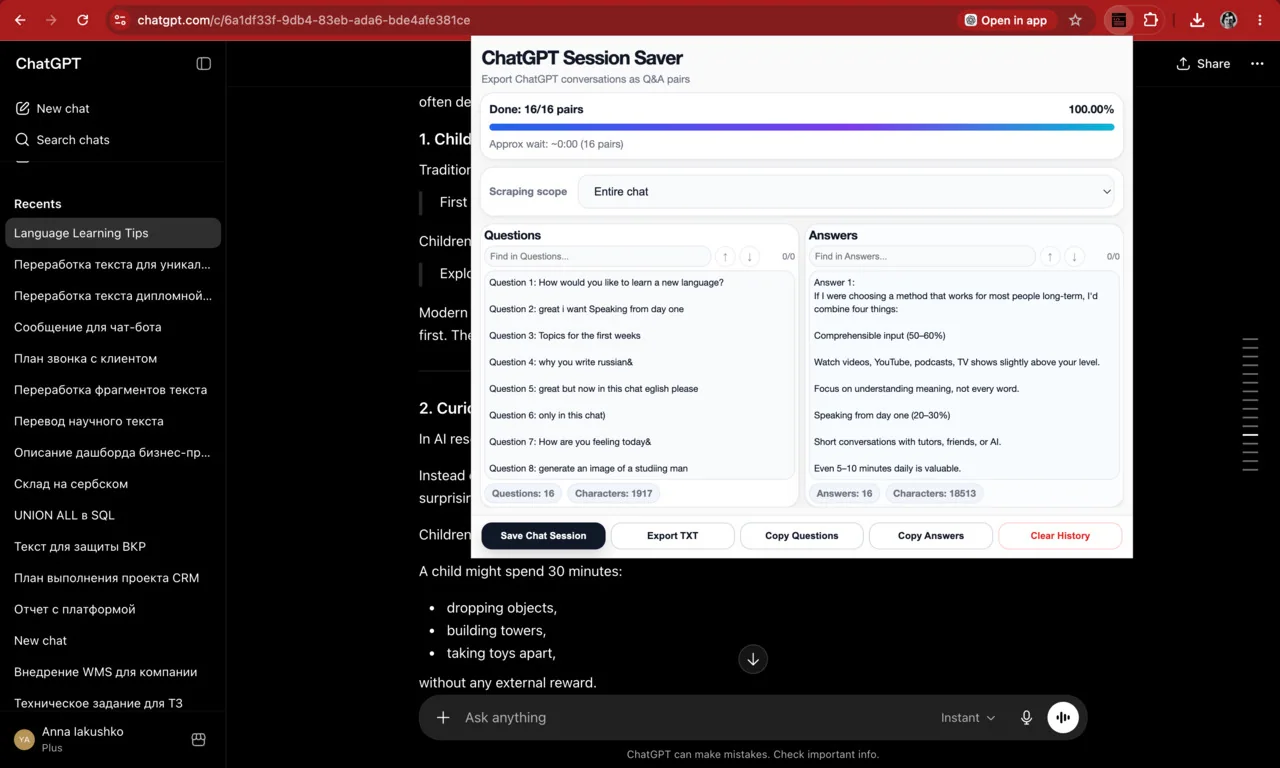
- Use ChatGPT Session Saver to save one active long conversation as structured local TXT/Q&A notes.
- Confirm that the earliest prompt and latest answer are present before closing the chat.
Save the current conversation as local notes: Try ChatGPT Session Saver.
Start here
| If you want to… | Start with |
|---|---|
| Save one active long conversation | How to Export a Single ChatGPT Conversation |
| Download one complete conversation | How to Download a Full ChatGPT Conversation |
| Avoid manual-copy failures | Why Copy-Paste Fails for Long ChatGPT Conversations |
| Make the saved chat reusable | How to Export a ChatGPT Conversation as Question-and-Answer Pairs |
| Save a Temporary Chat | How to Save or Export a Temporary Chat in ChatGPT |
| Compare output formats | TXT vs Markdown vs PDF vs JSON for ChatGPT Export |
Why long ChatGPT chats are hard to export
Exporting a short ChatGPT conversation is easy. You select the text, copy it, and paste it somewhere else.
Long chats create different problems.
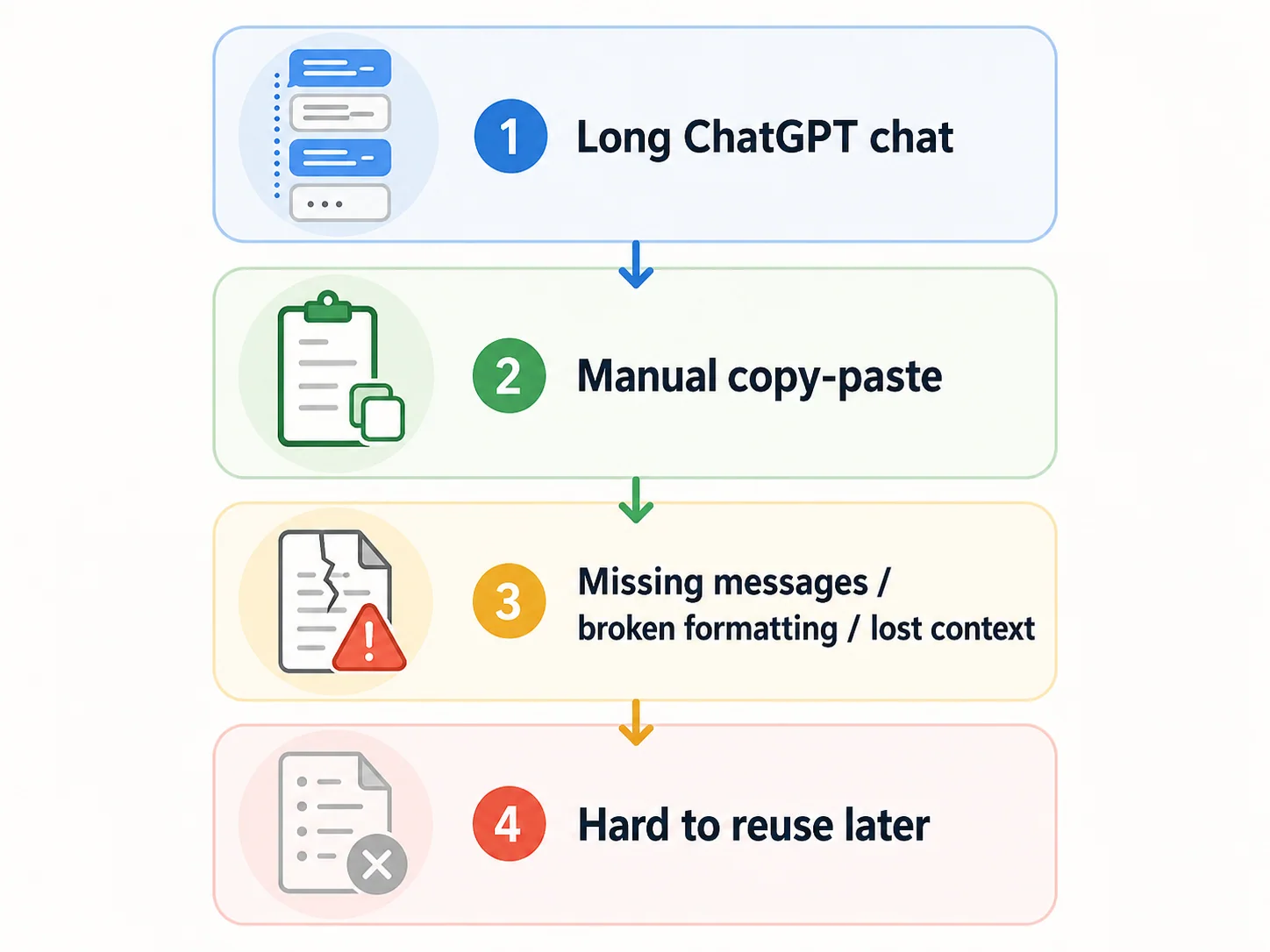
1. Manual copy-paste becomes painful
A long conversation can include dozens of prompts, follow-up questions, regenerated answers, code snippets, tables, and partial ideas. Copying everything manually means scrolling, selecting, checking, pasting, and cleaning the result.
The longer the chat, the easier it is to miss messages or break the structure.
2. The conversation loses structure
ChatGPT conversations are naturally structured as a back-and-forth:
- user question;
- assistant answer;
- follow-up question;
- refined answer;
- correction;
- final result.
When you copy everything into a document, that structure often becomes messy. It may be unclear where one question ends and the answer begins.
That matters if you want to reuse the conversation later.
3. PDFs are readable but not always reusable
Printing a conversation to PDF can preserve the visual layout. That is useful if you want a static record.
But PDF is not always the best format if you want to:
- search quickly;
- extract answers;
- reuse notes;
- feed the content into another tool;
- cleanly separate questions and answers.
For reuse, plain text or Markdown is often better.
4. Official account export is not the same as exporting one chat
ChatGPT’s official data export is useful when you want a copy of your account data. But if your goal is to save one active conversation right now in a clean, readable format, a full account archive may be more than you need.
There is a difference between:
- exporting all account data;
- sharing a conversation link;
- saving one long active chat as a local file.
Each method solves a different problem.
5. Long conversations are harder to reuse later
The real problem is not only “How do I download this chat?”
The more useful question is:
How do I turn this long conversation into something I can search, read, and reuse later?
That is why the export format and structure matter.
For a closer look at one common failure mode, read Why Copy-Paste Fails for Long ChatGPT Conversations. If the main problem is navigating a huge active thread, see How to Save a Long ChatGPT Conversation Without Scrolling Forever.
How we compare ChatGPT export methods
To compare export methods fairly, this guide uses practical criteria:
- Can it save one active conversation?
- Does it work well for long chats?
- Does it preserve the question-answer structure?
- Is the output easy to search?
- Is the output easy to reuse in notes, documents, or another AI tool?
- Does it work locally?
- Is it good for sharing?
- Is it good for full account backup?
- Does it require trusting a third-party server?
The best method depends on what you want to do after export. A full account archive, a shared link, a PDF, and a local TXT export are different tools for different jobs.
This comparison is based on the job after export: backup, sharing, reading, reuse, privacy, or structured notes.
Practical methods for saving a long ChatGPT chat
Choose the method by the job after export, not by convenience alone.
| Method | Best for | Main limitation |
|---|---|---|
| Official Data Export | Full account archive | You must locate the needed chat afterward |
| Shared link | Letting another person view the chat | Not a local private backup |
| Copy-paste | Short excerpts | Unreliable for long threads |
| Print to PDF | A readable static copy | Awkward to edit or reuse |
| Local TXT/Q&A export | One active long conversation | Not a full account archive |
For an active thread you want to keep as searchable notes, ChatGPT Session Saver extracts the visible conversation into local Q&A-style TXT. For an account-wide archive, use ChatGPT’s official Data Export instead. Read How to Export a Single ChatGPT Conversation if the thread is not specifically long.
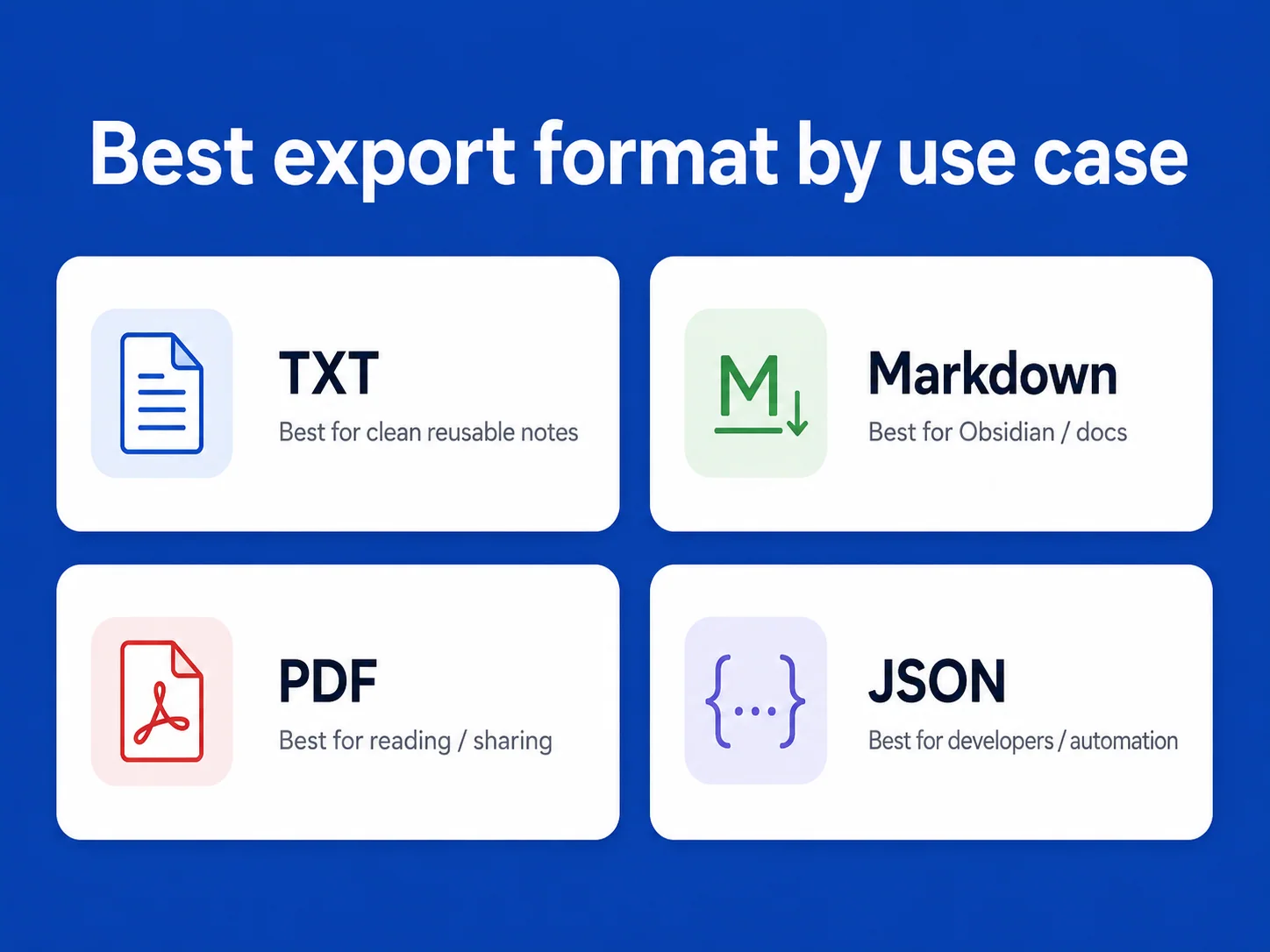
Choose a format
The export format matters because it changes how useful the saved conversation will be later.
| Format | Best for | Weakness |
|---|---|---|
| TXT | Clean text, search, reuse, simple archive | No rich formatting |
| Markdown | Notes, documentation, Obsidian, developer workflows | Requires cleaner formatting |
| Reading, sharing, visual preservation | Harder to edit and reuse | |
| JSON | Developers, data processing, automation | Not comfortable for normal reading |
For most long ChatGPT conversations, TXT or Markdown works best when the goal is reuse. PDF works best when the goal is reading or sharing. JSON works best when the goal is automation.
Key terms for the methods below
Before comparing export methods, it helps to separate a few related ideas.
ChatGPT conversation export means saving a ChatGPT conversation outside the ChatGPT interface as a file, link, archive, or structured note.
Single-chat export means saving one specific active conversation, instead of downloading the full account history.
Q&A export means preserving the conversation as paired user questions and assistant answers, so the context remains clear later.
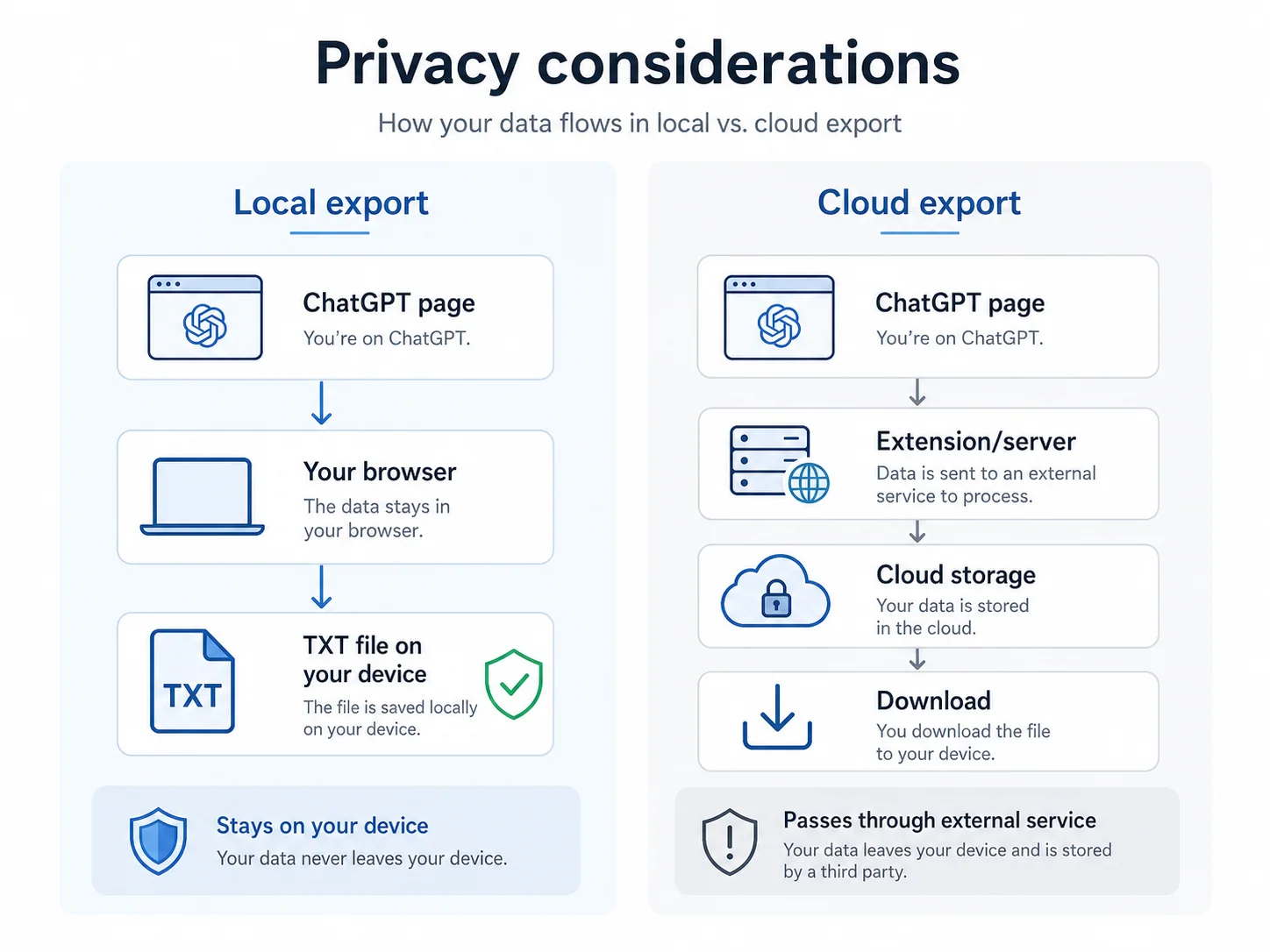
Local export means the conversation is processed and saved on your device without sending the chat content to another backend or cloud storage service.
If the chat is Temporary, save or export it while it is still open: How to Save or Export a Temporary Chat in ChatGPT.
These terms matter because different export methods solve different problems.
What this guide covers and what it does not cover
This guide covers practical ways to save, export, structure, and reuse long ChatGPT conversations.
It covers:
- official account export;
- shared links;
- manual copy-paste;
- PDF;
- local browser-based export;
- Q&A-style TXT notes;
- format trade-offs;
- privacy basics.
It does not try to make one method look best for every case. Official data export is better for account backup. Shared links are better for quick sharing. PDF is better for reading. A local Q&A-style TXT export is better when you want to reuse one active long conversation as notes.
Privacy considerations
ChatGPT conversations can contain sensitive information: business ideas, personal notes, code, client details, research, drafts, or private decisions.
Before exporting a chat, think about where the data goes.
Ask these questions
Before using any export method or browser extension, ask:
- Does this tool upload my chat anywhere?
- Does it require a login?
- Does it use a backend server?
- What browser permissions does it need?
- Can I save the file locally?
- Is the output easy to delete?
- Am I exporting information I should not store or share?
Browser extension permissions matter
For browser extensions, permissions are part of the trust model.
A privacy-friendly ChatGPT export extension should avoid requesting more access than it needs. In most cases, a tool that only works on ChatGPT should not need broad access to every website you visit.
Before installing an export extension, check:
- whether it asks for access only to the relevant ChatGPT pages;
- whether it explains why each permission is needed;
- whether it uploads exported conversations anywhere;
- whether it works without a separate account;
- whether it has a clear privacy policy.
Permissions do not automatically mean a tool is unsafe, but unnecessary permissions are a reason to be careful. Chrome explains how extension and host access work in its official permissions documentation. Use the ChatGPT export extension safety checklist to review permissions, local and cloud processing, backend uploads, and privacy policies together.
Local export vs. cloud export
A local export means the conversation is processed and saved on your device without uploading the content to another server.
A cloud export or cloud backup may be convenient, but it also means your conversation may leave your browser or computer.
For sensitive chats, local-first tools are usually safer and easier to reason about. ChatGPT Session Saver’s data handling is described in its Privacy Policy.
Shared links are not backups
A shared link is useful, but it is not the same as owning a local copy.
According to OpenAI’s Shared Links FAQ, anyone who has access to a shared link can view the linked conversation. Do not use shared links for sensitive information or treat them as a private backup.
If you want long-term control, save the conversation as a file you can store, move, search, and delete yourself.
Best method for Q&A notes
If your goal is to reuse a ChatGPT conversation later, the best format is often Q&A.
The question is part of the context.
A ChatGPT answer without the original question can become confusing later. You may forget what you asked, what assumptions were included, or why the answer was useful.
A Q&A structure preserves the reasoning path.
QuestionHow can I export a long ChatGPT conversation?
AnswerYou can use official data export for full account history, a shared link for sharing, PDF for reading, or a local exporter for saving one active long chat as reusable text.
This format is easier to:
- review;
- search;
- turn into notes;
- reuse in future prompts;
- organize by topic;
- import into a personal knowledge base.
For long ChatGPT conversations, Q&A export is usually more useful than a flat wall of copied text.
Recommended workflow for long ChatGPT chats
For important long conversations, a practical workflow looks like this:
- Keep the active ChatGPT thread focused on one topic or project.
- Export the conversation before it becomes too long to review manually.
- Preserve the original question-answer structure.
- Save the export as TXT or Markdown if you plan to reuse it.
- Store the file in a clear local folder, notes app, or knowledge base.
- Add a short filename that includes the topic and date.
- Avoid using shared links for sensitive conversations.
This turns ChatGPT from a temporary chat interface into a reusable research and thinking archive.
When to use ChatGPT Session Saver
ChatGPT Session Saver is a local-first browser tool for saving one active ChatGPT conversation as clean Q&A-style TXT notes.
Use it when you need to:
- export a long ChatGPT chat;
- avoid manual copy-paste;
- save the conversation locally;
- split the conversation into Q&A pairs;
- search inside the extracted session;
- download the result as TXT;
- keep a clean archive of important AI conversations.
It is not meant to replace ChatGPT’s official account data export. It solves a different problem: saving the current conversation in a clean, practical format.
If you work with long ChatGPT threads for research, writing, strategy, coding, studying, or planning, a structured local export can save a lot of time.
When not to use ChatGPT Session Saver
ChatGPT Session Saver is not the best option for every export job.
Use another method if you need:
- a full archive of your entire ChatGPT account history;
- a polished PDF for formal sharing;
- JSON for automation or data processing;
- bulk export of all historical chats;
- a cloud backup that syncs across devices automatically.
Session Saver is focused on one specific job: saving one active long ChatGPT conversation as clean, local, reusable Q&A-style TXT notes.
Recommended next guide
If you are not sure where to go next, start with the most common failure mode: manual copy-paste. It explains why long ChatGPT conversations often lose context when saved by hand. Then read why saved long chats are hard to reuse and the Q&A notes guide if your goal is reuse rather than simple storage.
FAQ
Can I export a single ChatGPT conversation?
Yes. You can save a single conversation manually, share it as a link, print it as PDF, or use a browser-based exporter to save the active chat as a file.
Is ChatGPT data export the same as exporting one chat?
No. ChatGPT data export is meant for exporting account-level data. Exporting one chat usually means saving one active conversation in a specific format such as TXT, PDF, Markdown, or JSON.
What is the best way to export a long ChatGPT chat?
For long chats, the best method is usually a structured text export. It is easier to search, edit, reuse, and archive than a visual PDF or messy copy-paste.
Can I save a ChatGPT conversation as TXT?
Yes. TXT is one of the simplest formats for saving ChatGPT conversations. It works especially well when the conversation is structured into user questions and assistant answers.
Is PDF good for saving ChatGPT conversations?
PDF is good for reading and sharing. It is less useful if you want to edit, search, reorganize, or reuse the conversation later.
Why does copy-paste fail for long ChatGPT chats?
Copy-paste becomes unreliable because long chats include many messages, code blocks, tables, and formatting changes. It is easy to miss parts of the conversation or lose the question-answer structure.
Is it safe to use a ChatGPT export extension?
It depends on the extension. Check what permissions it requests, whether it uploads data to a server, whether it requires login, and whether it explains how your data is handled. For sensitive conversations, local-first tools are usually preferable.
What format is best for reusable ChatGPT notes?
TXT or Markdown is usually best for reusable notes. TXT is the simplest. Markdown is better if you need headings, lists, and code formatting.
Can I search inside an exported ChatGPT chat?
Yes, if the chat is exported as clean text or structured notes. TXT and Markdown files are easy to search with almost any editor or knowledge base tool.
What is the best way to save ChatGPT chats for a knowledge base?
Use a format that preserves the question-answer structure. Q&A-style TXT or Markdown makes it easier to organize, search, and reuse your ChatGPT conversations later.
What is the difference between ChatGPT data export and single-chat export?
ChatGPT data export is for downloading account-level data. Single-chat export is for saving one specific conversation in a usable format such as TXT, Markdown, PDF, or JSON.
What is Q&A export?
Q&A export saves a conversation as pairs of user questions and assistant answers. This makes long chats easier to search, review, and reuse later.
Should I use shared links as a backup?
No. Shared links are useful for showing a conversation to someone else, but they are not a private local backup. If you need long-term control, save the conversation as a local file.
Related guides
- How to Export a Single ChatGPT Conversation
- How to Download a Full ChatGPT Conversation
- How to Save a ChatGPT Conversation as PDF
- How to Copy an Entire ChatGPT Conversation
- How to Save or Export a Temporary Chat in ChatGPT
- How to Export a ChatGPT Conversation as Question-and-Answer Pairs
- ChatGPT Session Saver
Final thought
Long ChatGPT conversations are not just chats. They often contain research, decisions, drafts, plans, code, ideas, and useful reasoning.
If you only copy them manually or save screenshots, you lose much of that value.
The better approach is to treat important ChatGPT conversations as reusable knowledge: export them cleanly, preserve the question-answer structure, and store them somewhere you control.
Save your current conversation: use ChatGPT Session Saver to turn a long active chat into searchable Q&A notes and export it as TXT.