How to Save a Long ChatGPT Conversation Without Scrolling Forever
Short answer
To save a long ChatGPT conversation without scrolling forever, use a method that captures the active conversation directly instead of manually selecting messages one by one.
Manual copy-paste works for short chats, but it becomes slow and unreliable when a thread has dozens or hundreds of messages. For long conversations, better options include official account export, shared links, print-to-PDF, or a local browser-based exporter that saves the active chat as a clean file.
If your goal is to reuse the conversation later, the best format is usually a clean TXT or Markdown export that preserves the original question-answer structure.
Difference in one sentence: The real goal is not just avoiding scrolling; it is saving the active conversation without missing messages or losing context.
Why long ChatGPT conversations are hard to save manually
A short ChatGPT answer is easy to copy. You select the text, paste it into a document, and move on.
A long ChatGPT conversation is different.
It may include:
- many user questions;
- long assistant answers;
- follow-up clarifications;
- tables;
- code blocks;
- rewrites;
- decisions;
- rejected versions;
- final summaries.
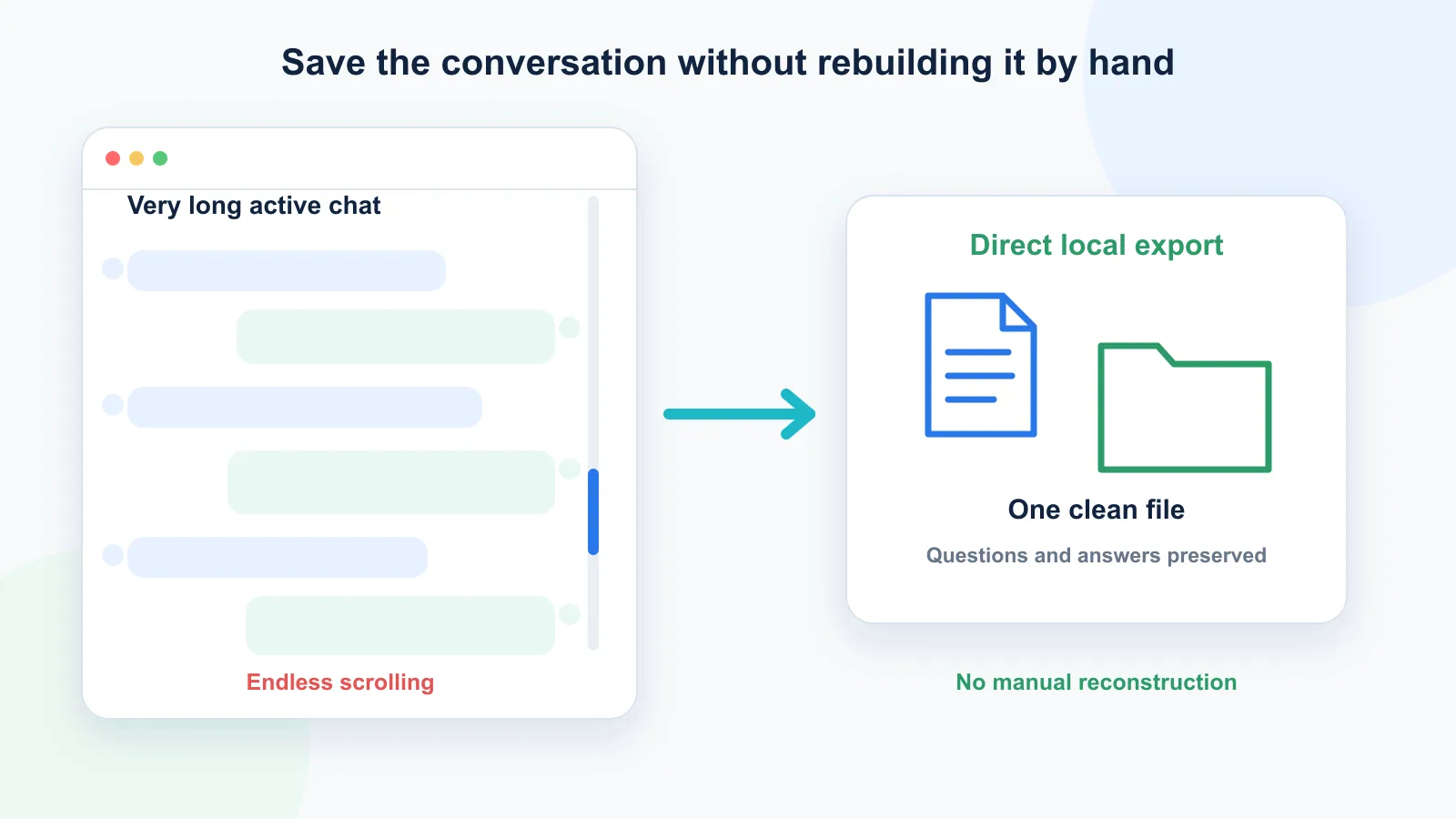
When the thread gets long, saving it manually becomes annoying for one simple reason: the useful content is spread across the whole conversation.
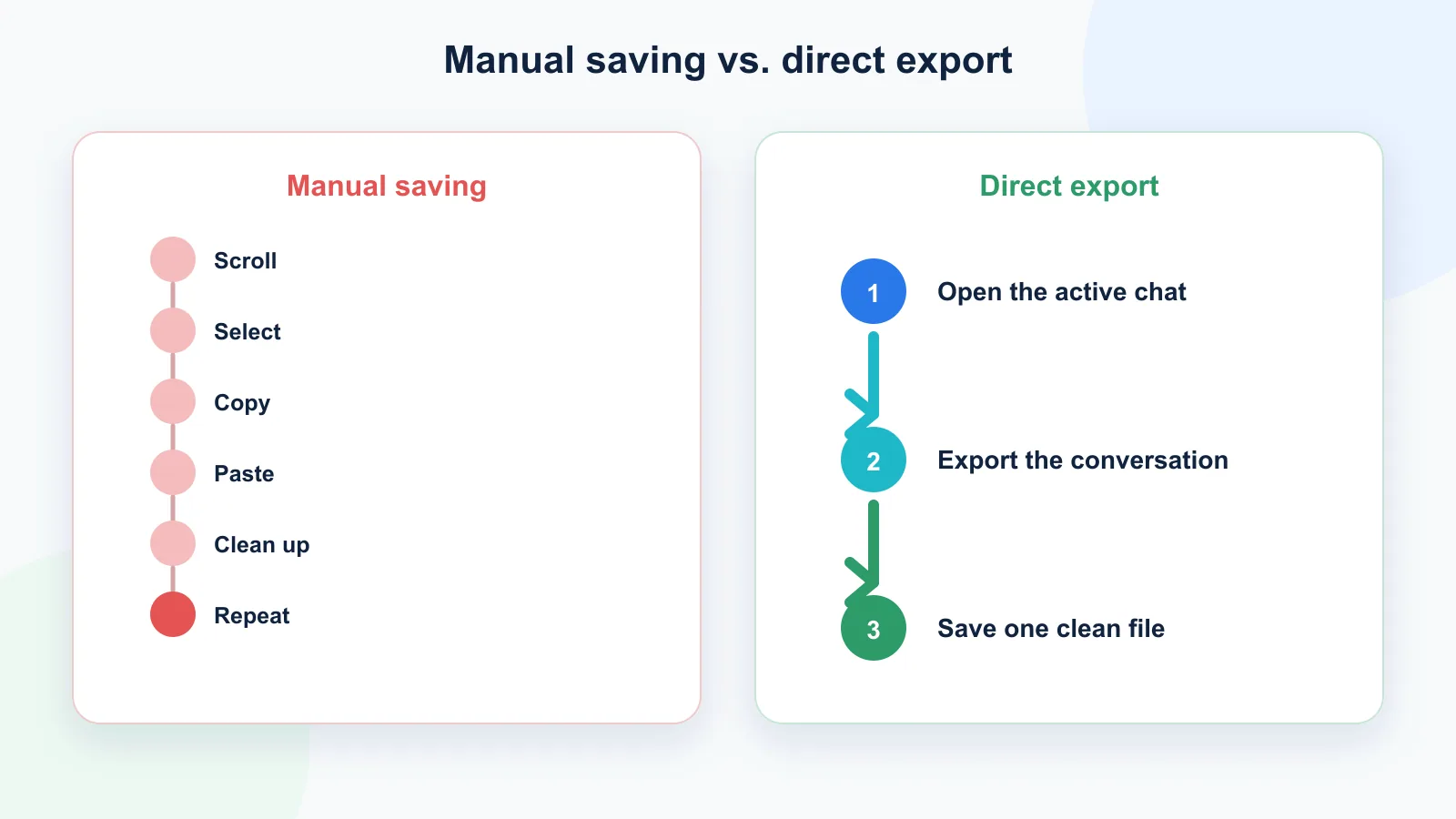
You have to scroll up, wait for earlier messages to load, select large blocks of text, avoid missing parts, paste everything somewhere else, and then clean up the formatting.
That is not really an export workflow. It is manual reconstruction.
The scrolling problem
The biggest problem with saving long ChatGPT chats manually is not just the scrolling itself. It is what scrolling does to the reliability of the saved file.
When you save a long conversation by hand, you can easily:
- start copying from the wrong place;
- miss early messages;
- skip a follow-up question;
- copy the same section twice;
- lose the question that explains an answer;
- break tables or code blocks;
- create a file that is too messy to reuse later.
This matters because ChatGPT conversations are contextual. The answer usually depends on the question before it. A good saved chat should preserve that relationship.
If the exported file becomes one huge block of text, you technically saved the conversation, but you may not have saved it in a useful form.
Why scrolling is only a symptom
Scrolling is annoying, but the deeper problem is reliability. A long conversation can contain hidden context above the visible part of the page. If you only save what is easy to select, you may create a file that looks complete but is missing the messages that explain the final answer.
| Symptom | Real problem |
|---|---|
| Too much scrolling | Earlier context is easy to miss |
| Hard to select the whole chat | Manual selection is unreliable |
| Copied file looks messy | The chat structure was not preserved |
| Final answer feels unclear later | The original prompt or constraints are missing |
This is the same structural problem explained in Why Copy-Paste Fails for Long ChatGPT Conversations.
Best ways to save a long ChatGPT conversation
There are several ways to save a ChatGPT conversation without manually scrolling through the whole thread.
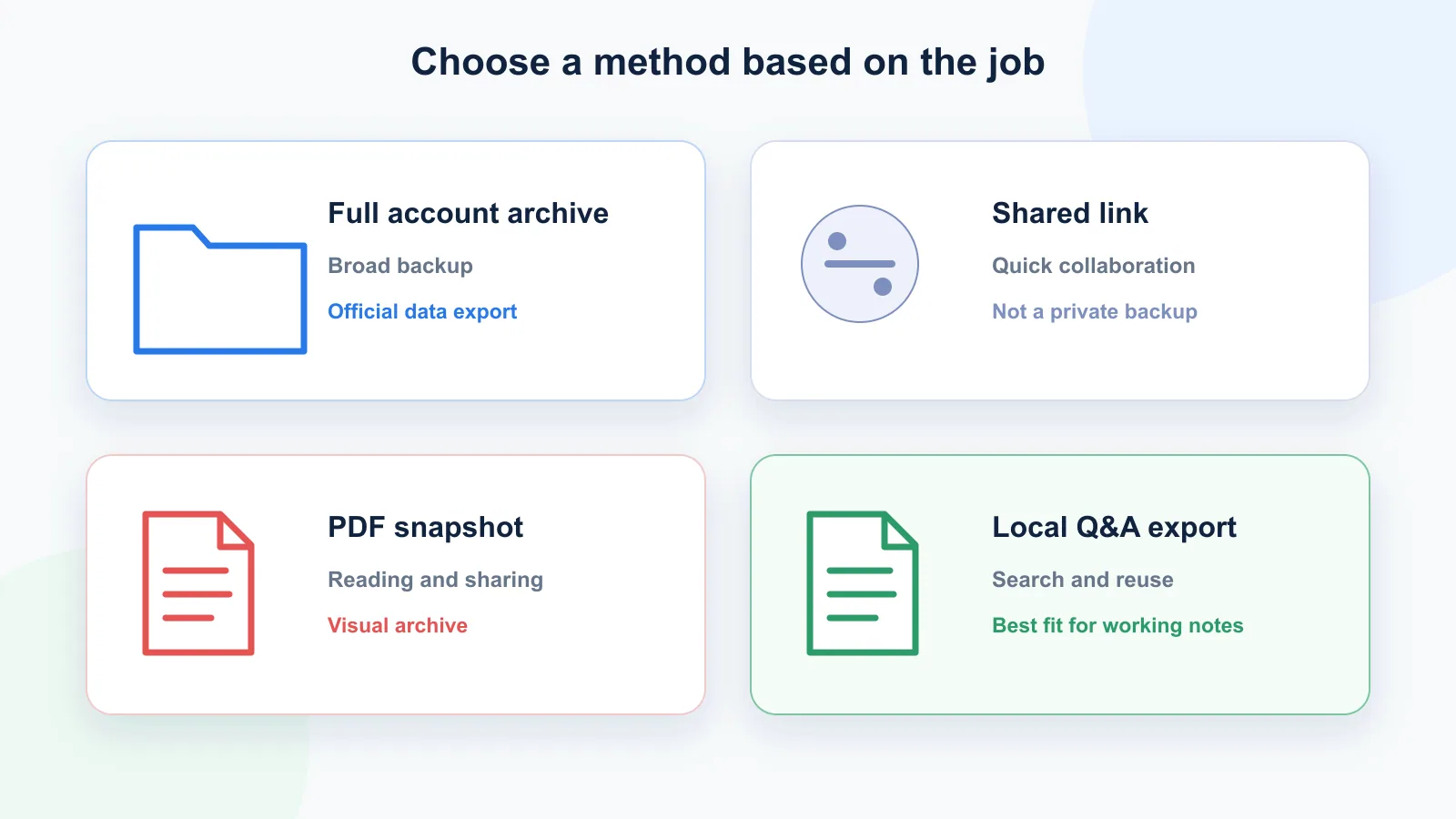
| Method | Best for | Main limitation |
|---|---|---|
| Official ChatGPT data export | Full account archive | Not convenient for saving one active chat quickly |
| Shared link | Sharing a conversation with another person | Not a private local backup |
| Print to PDF | Reading and visual archiving | Harder to edit, search, or reuse |
| Browser extension or local exporter | Saving one active long chat | Depends on extension quality and permissions |
| Q&A-style TXT export | Reusable notes from long chats | Less visual than PDF |
The right method depends on what you want to do after saving the conversation.
If you need a full backup of your account, use official data export. If you need to send someone a conversation, use a shared link. If you need a readable document, use PDF. If you need reusable notes, use TXT or Markdown.
When you do not need the whole conversation
Sometimes you do not need to save the entire thread.
You may only need:
- the last few useful Q&A pairs;
- everything from the current point down;
- the final answer and the prompt that created it;
- a short summary plus the original source chat;
- one code block or table.
But if the conversation includes decisions, constraints, and multiple follow-ups, saving only the final answer can remove important context.
For an active conversation, ChatGPT Session Saver supports entire-chat, recent-pair, and current-position export scopes. If you only need one specific thread rather than account history, see the single-chat export guide.
Method 1: Use official ChatGPT data export
Official data export is useful when you want to download your broader ChatGPT account data.
This can be a good option if your goal is account-level backup rather than saving one specific chat. It is also useful if you want to keep a full archive of your historical conversations.
The downside is convenience.
Official data export is not designed as a quick “save this one active conversation right now” button. It usually gives you an archive of account data, not a clean, ready-to-read note for one specific thread.
Use this method when:
- you want a full account archive;
- you do not need the file immediately;
- you are comfortable sorting through exported data;
- you are backing up many conversations at once.
Do not use this method when:
- you only need one active chat;
- you want clean Q&A notes;
- you want a quick TXT file;
- you want to reuse the conversation immediately.
Method 2: Use a shared link
A shared link is useful when your goal is to show the conversation to someone else.
It is fast, simple, and does not require you to copy the whole thread manually. For collaboration, feedback, or sending a conversation to another person, this can be enough.
But a shared link is not the same as a private local export. OpenAI explains that anyone with access to a shared link can view the linked conversation.
A link depends on the platform. It is not a file you control. It is also not ideal for building your own archive of reusable notes.
Use this method when:
- you want to share a conversation;
- the conversation is not sensitive;
- you do not need a local copy;
- you do not need to edit or restructure the content.
Do not use this method when:
- the chat contains private information;
- you need long-term local control;
- you want to search the conversation inside your own notes;
- you want to reuse the content in a document, knowledge base, or another AI tool.
Method 3: Print the conversation to PDF
Printing to PDF can work when you want a readable snapshot of the conversation.
PDF is good for:
- reading;
- sharing;
- visual preservation;
- archiving final conversations.
But PDF is not always good for reuse.
A PDF can be harder to edit, search, clean up, or turn into notes. If the conversation includes many sections, follow-ups, and revisions, the PDF may preserve the visual flow but not make the content easier to work with.
Use PDF when:
- you want a stable reading copy;
- you need to send the chat as a document;
- visual formatting matters more than editing;
- you do not plan to reuse the conversation heavily.
Avoid PDF when:
- you want clean notes;
- you want to edit the conversation;
- you want to extract Q&A pairs;
- you want to search and reuse specific answers later.
Method 4: Use a local browser exporter
A local browser exporter is usually the most practical option when you want to save one active long ChatGPT conversation without scrolling forever.
Instead of manually selecting the thread, the tool reads the conversation from the current page and turns it into an exportable file.
This is especially useful when the conversation is long but still active and important.
A good exporter should help you avoid:
- manual scrolling;
- broken copy-paste;
- missing messages;
- unclear structure;
- messy formatting;
- one giant unreadable transcript.
But you should still be careful with browser extensions.
Before using any extension, check:
- what permissions it requests;
- whether it explains how your data is handled;
- whether it uploads conversations to a server;
- whether it works locally;
- whether it has a clear privacy policy;
- whether the output format fits your use case.
Chrome’s official permissions documentation explains how extension and host access are declared. For private or sensitive conversations, local-first tools are usually preferable to cloud-based export workflows.
Why Q&A export is better for long conversations
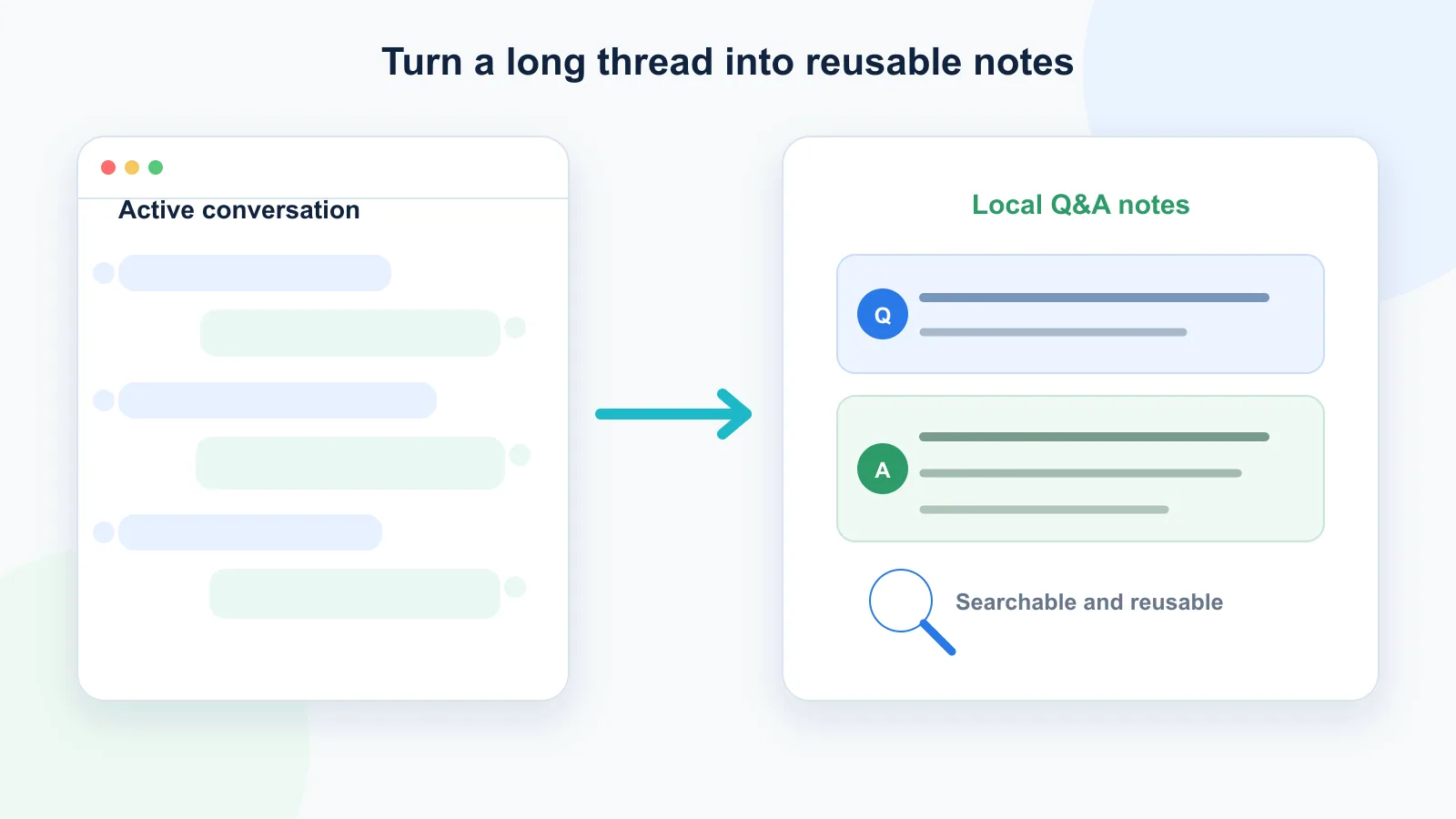
Long ChatGPT chats are easier to reuse when they are saved as question-answer pairs.
A normal transcript shows the conversation in order, but it can still become hard to scan. Q&A export makes the structure clearer:
Question: What did the user ask? Answer: What did ChatGPT respond?
This matters because long conversations often contain many small decisions. The value is not only in the final answer. It is also in the path that led there.
Q&A structure helps you:
- find the original prompt;
- understand why an answer was given;
- separate different topics;
- reuse answers later;
- turn chats into notes;
- build a personal knowledge base from AI conversations.
If you save a long conversation as one continuous wall of text, you may lose that clarity.
For a practical structure, see how to turn a messy ChatGPT thread into clean Q&A notes.
Recommended workflow
For important long ChatGPT conversations, use a simple export workflow:
- Keep one conversation focused on one topic or project.
- Export the chat before it becomes too long to review manually.
- Preserve the original question-answer structure.
- Save the file as TXT or Markdown if you plan to reuse it.
- Use PDF only if the goal is reading or sharing.
- Add a clear filename with the topic and date.
- Store the file in your notes app, project folder, or local archive.
- Avoid shared links for private or sensitive conversations.
This workflow turns ChatGPT from a temporary chat interface into a reusable thinking archive.
Naming exported long chats
Use clear filenames so exported chats are easy to find later.
Suggested filename patterns:
2026-06-12-chatgpt-export-strategy.txt2026-06-12-research-notes-ai-seo.txt2026-06-12-debugging-session-auth-error.txt
A useful filename includes:
- date;
- topic;
- project name if relevant;
- format.
The pillar guide compares all practical methods for exporting long ChatGPT chats.
How ChatGPT Session Saver helps
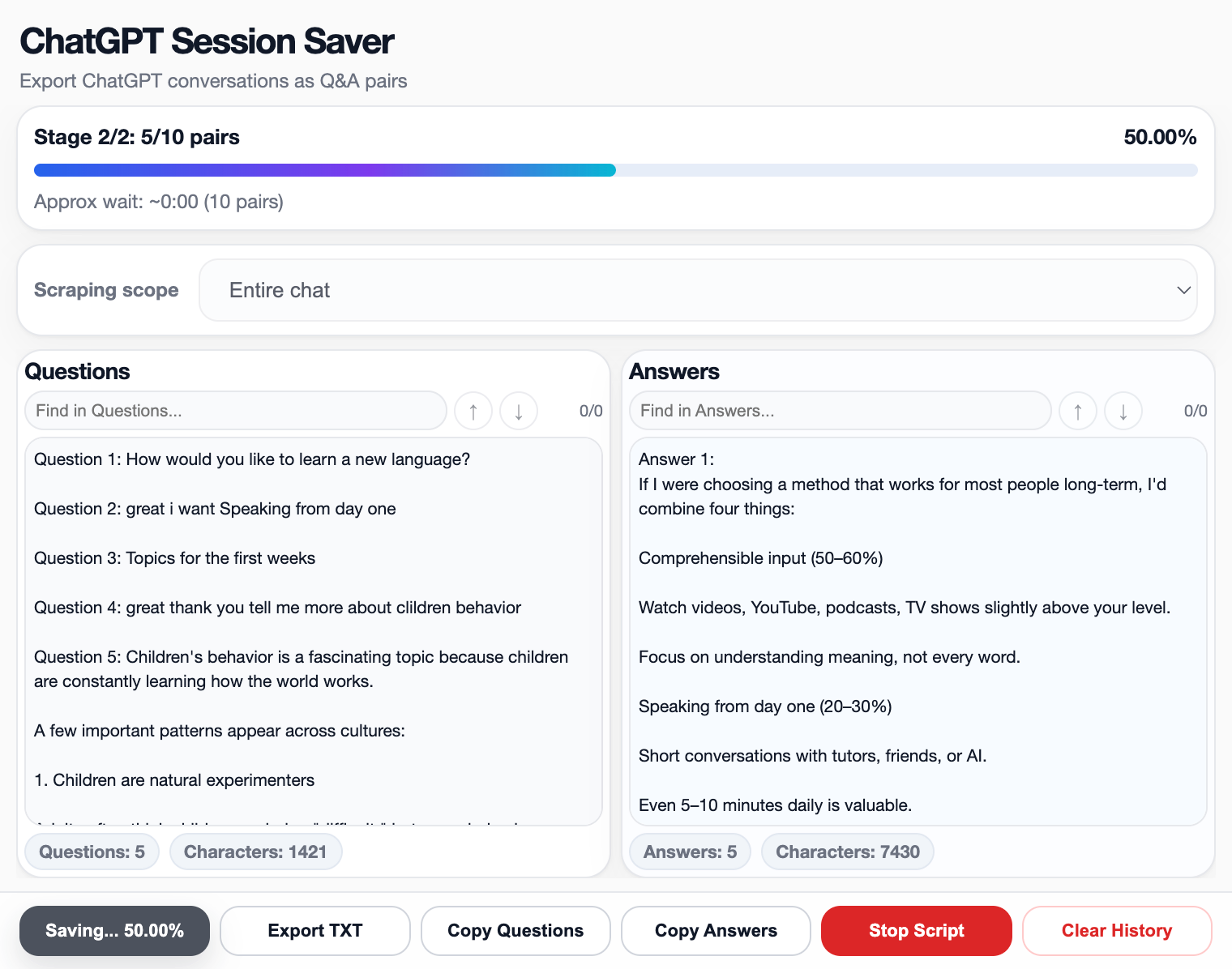
ChatGPT Session Saver is a local-first browser tool for saving one active ChatGPT conversation as clean Q&A-style TXT notes.
It is useful when you do not want to scroll forever, copy messages manually, or clean up a messy transcript afterward.
It focuses on:
- long active ChatGPT chats;
- local saving;
- clean TXT export;
- question-answer structure;
- search inside the session;
- reusable notes.
It is not meant to replace every export method.
Use official data export for full account backup. Use shared links for quick sharing. Use PDF for reading or presentation. Use ChatGPT Session Saver when you want one long conversation saved locally as clean Q&A-style TXT notes.
When scrolling is still fine
Manual scrolling is not always a problem.
It is fine when:
- the chat is short;
- you only need one answer;
- you are copying a small snippet;
- the content is temporary;
- formatting does not matter;
- you do not need to reuse the conversation later.
For small tasks, manual copy-paste is still the fastest method.
The problem starts when the chat becomes important enough to preserve properly.
What to avoid
When saving long ChatGPT conversations, avoid these mistakes:
- saving only the final answer without the original question;
- using shared links for private information;
- copying huge text blocks without checking for missing messages;
- relying on PDF when you actually need editable notes;
- using browser extensions without checking permissions;
- storing exported chats with unclear filenames;
- mixing many unrelated topics in one saved thread.
A saved conversation should be easy to understand later. If you cannot quickly see what the chat was about, what questions were asked, and which answers mattered, the export method did not really solve the problem.
TXT vs PDF vs Markdown for long ChatGPT conversations
| Format | Best for | Not ideal for |
|---|---|---|
| TXT | Clean notes, search, reuse | Visual formatting |
| Markdown | Notes, docs, Obsidian-style workflows | Users who want a simple plain file |
| Reading and sharing | Editing and reuse | |
| JSON | Automation and developers | Normal reading |
For most long ChatGPT conversations, TXT or Markdown is better when your goal is reuse. PDF is better when your goal is reading. JSON is better when your goal is automation.
FAQ
Can I save a long ChatGPT conversation without scrolling?
Yes. You can avoid manual scrolling by using official data export, a shared link, print-to-PDF, or a browser-based export tool. The best option depends on whether you want a full archive, a shareable link, a readable document, or reusable notes.
What is the easiest way to save one long ChatGPT chat?
For one active long conversation, a local browser exporter is usually the easiest method. It avoids manual scrolling and can save the current chat as a clean file.
Is copy-paste enough for long ChatGPT conversations?
Copy-paste is fine for short answers, but it is not ideal for long conversations. You can miss messages, break formatting, and lose the question-answer structure.
Is PDF a good format for saving ChatGPT chats?
PDF is good for reading and sharing. It is less useful if you want to edit, search, or reuse the conversation later.
What is the best format for reusable ChatGPT notes?
TXT or Markdown is usually best for reusable notes. They are easier to search, edit, and move into a notes app or knowledge base.
Should I use shared links as a backup?
Shared links are useful for sharing a conversation, but they are not the same as a private local backup. For long-term control, save the conversation as a local file.
Why does Q&A structure matter?
Q&A structure preserves the relationship between each user question and each assistant answer. This makes long conversations easier to review, search, and reuse later.
Part of the ChatGPT Export Guides
This guide is part of a practical series about saving, exporting, structuring, and reusing ChatGPT conversations.
Final thought
You should not have to scroll forever just to save a useful ChatGPT conversation.
Manual copying works for short snippets, but long conversations need a better workflow. The goal is not only to save the text. The goal is to preserve the structure, context, and usefulness of the conversation.
For one important long chat, a clean local Q&A-style export is usually the most practical option.