How Browser Extensions Read an Active ChatGPT Page
Quick answer
Browser extensions can read an active ChatGPT page by running a script inside the current browser tab.
That script can inspect the page structure, find message elements, extract visible conversation text, and turn it into an exportable format such as TXT or Markdown.
For ChatGPT export tools, the basic idea is:
Active ChatGPT page
→ browser extension runs a content script
→ content script reads the page DOM
→ extension extracts conversation content
→ export file is created
This does not automatically mean the extension reads your full account history or uploads your conversations. The safety and privacy model depends on permissions, data handling, and whether the tool processes the export locally or sends data to a backend.
Difference in one sentence: A ChatGPT export extension usually reads the active page through a content script and the DOM, not by magically accessing every conversation in your account.
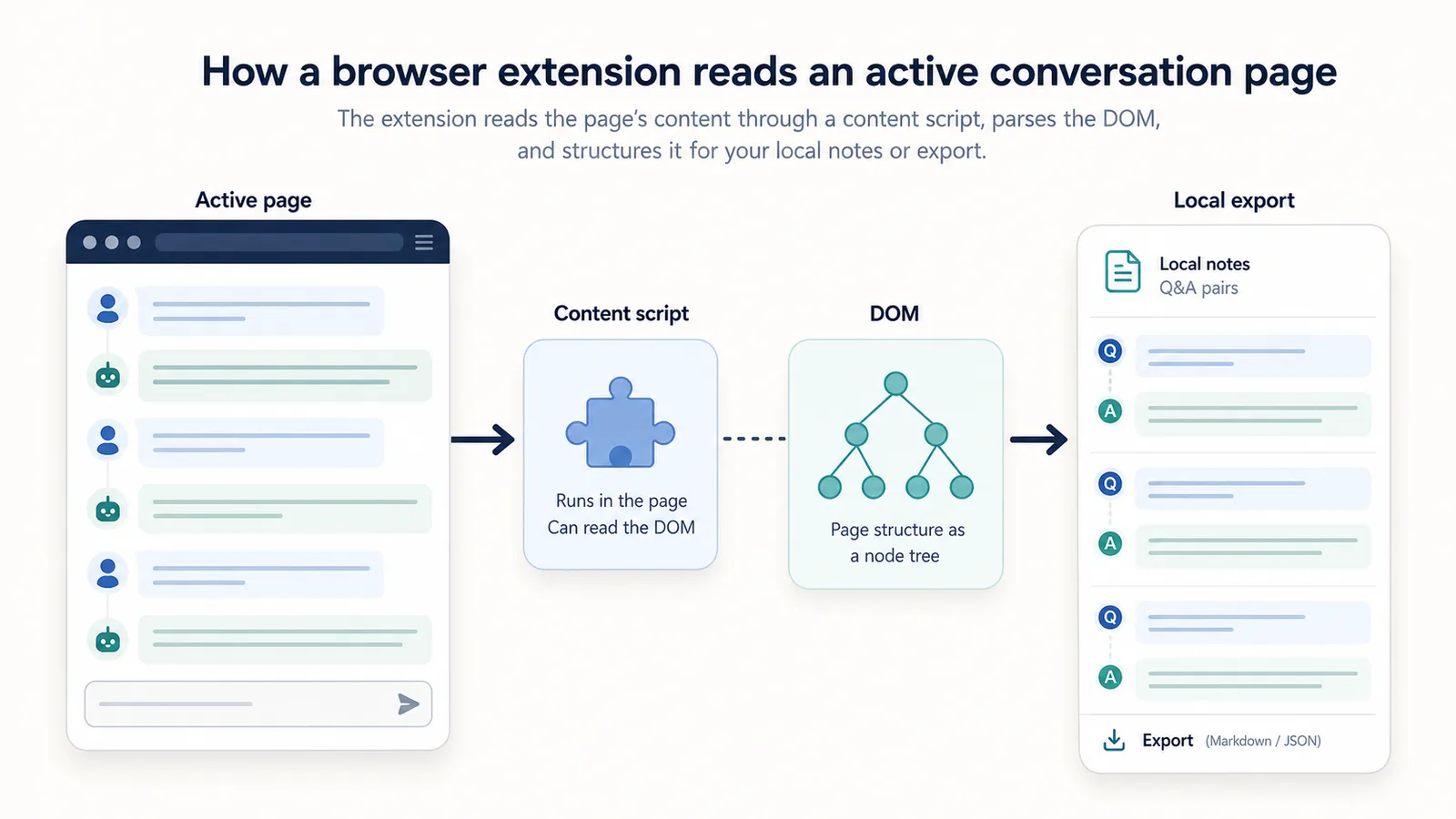
What “read an active ChatGPT page” means
When people hear that an extension can “read a page,” it can sound vague or scary.
In practice, it usually means something more specific:
- the user opens a ChatGPT conversation in the browser;
- the user clicks or activates the extension;
- the extension runs code on that current page;
- the code looks at the page structure;
- the code extracts message content from the visible or loaded conversation;
- the extension formats that content into an export.
This is different from:
- logging into the user’s ChatGPT account;
- downloading all account history;
- accessing every previous chat automatically;
- reading unrelated websites;
- uploading all messages to a server.
A well-scoped export extension should make this distinction clear.
The simple architecture
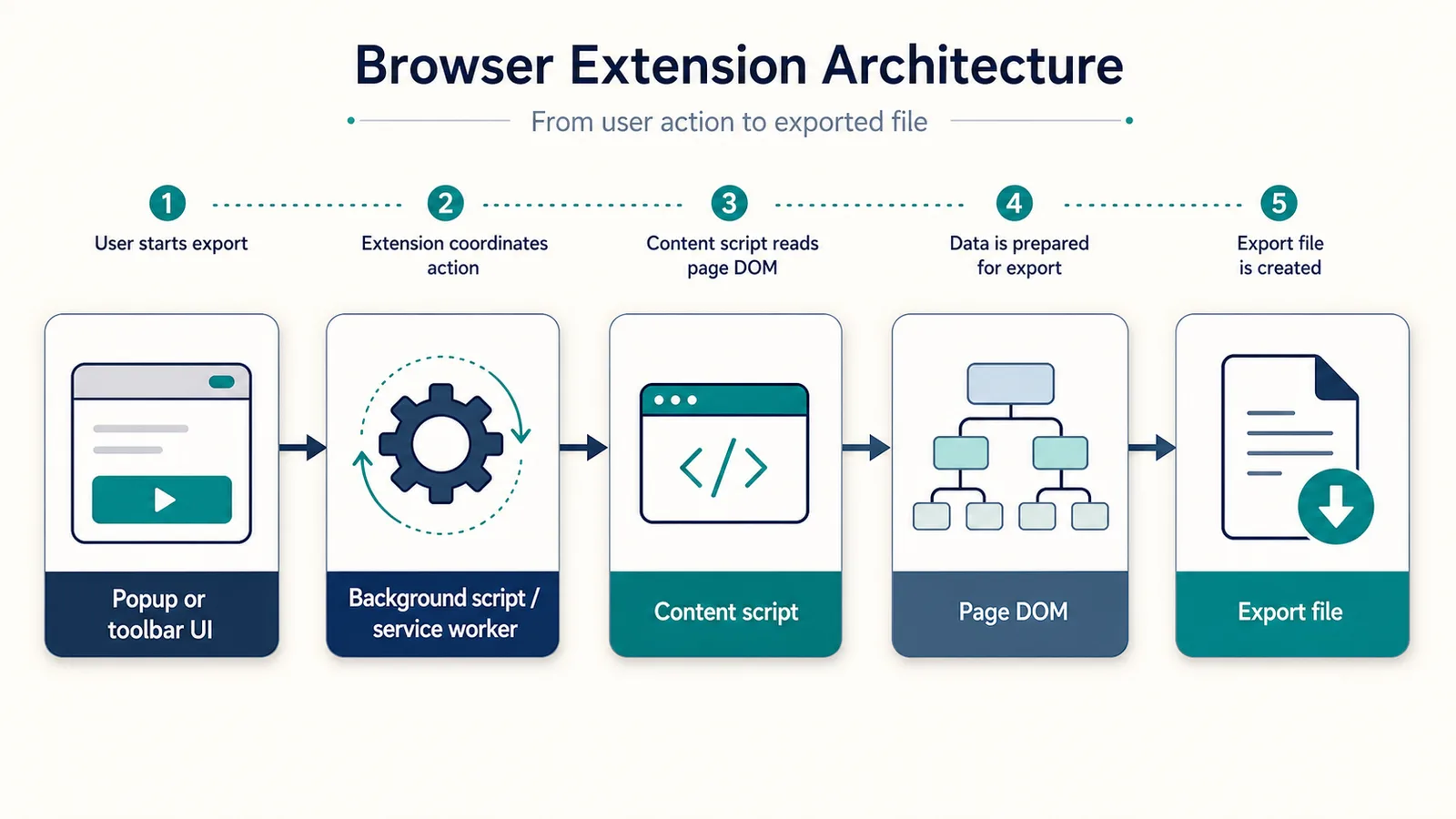
A browser extension usually has several parts.
For a ChatGPT export extension, the important pieces are:
| Extension part | What it does |
|---|---|
| Popup or toolbar UI | Lets the user start the export |
| Background script or service worker | Coordinates extension actions |
| Content script | Runs on the page and reads the DOM |
| Permissions | Tell the browser what the extension can access |
| Export logic | Turns extracted messages into a file |
A simplified flow looks like this:
User clicks extension
→ extension gets access to the active tab
→ content script runs on the ChatGPT page
→ script finds conversation messages
→ export logic formats the output
→ user downloads or copies the result
The content script is the part that actually interacts with the page.
What is a content script?
A content script is JavaScript that a browser extension runs on a web page.
In a ChatGPT export workflow, a content script can:
- inspect the page;
- read text from message elements;
- find user and assistant messages;
- observe changes while a page loads;
- extract code blocks or tables;
- send extracted content back to the extension;
- help create a local export.
Content scripts are useful because they operate close to the actual page content.
They do not need the website to provide a special export API. They can read the page that the browser has already rendered.
Official reference: Chrome Extensions: Content scripts
Content scripts and isolated worlds
Chrome content scripts run in an isolated environment.
That means the extension’s script and the web page’s own JavaScript are separated from each other.
This is useful because it reduces conflicts.
The extension can inspect the page DOM, but its JavaScript variables and the page’s JavaScript variables do not automatically mix.
In plain English:
The content script can see the page structure, but it does not simply become part of the website’s own code.
This separation is one reason browser extensions have a permission system.
Official reference: Chrome Extensions: Content scripts
What is the DOM?
The DOM stands for Document Object Model.
It is the browser’s structured representation of a web page.
When you see a page in the browser, the DOM contains elements such as:
- headings;
- paragraphs;
- buttons;
- links;
- forms;
- chat messages;
- code blocks;
- tables;
- containers;
- hidden or visible sections.
A ChatGPT conversation page also has a DOM.
The exact structure can change over time, but conceptually it contains:
- message containers;
- user prompts;
- assistant responses;
- code blocks;
- tables;
- buttons;
- input area;
- sidebar elements;
- interface labels.
A content script can inspect those elements and decide which parts are useful for export.
How an extension finds conversation messages
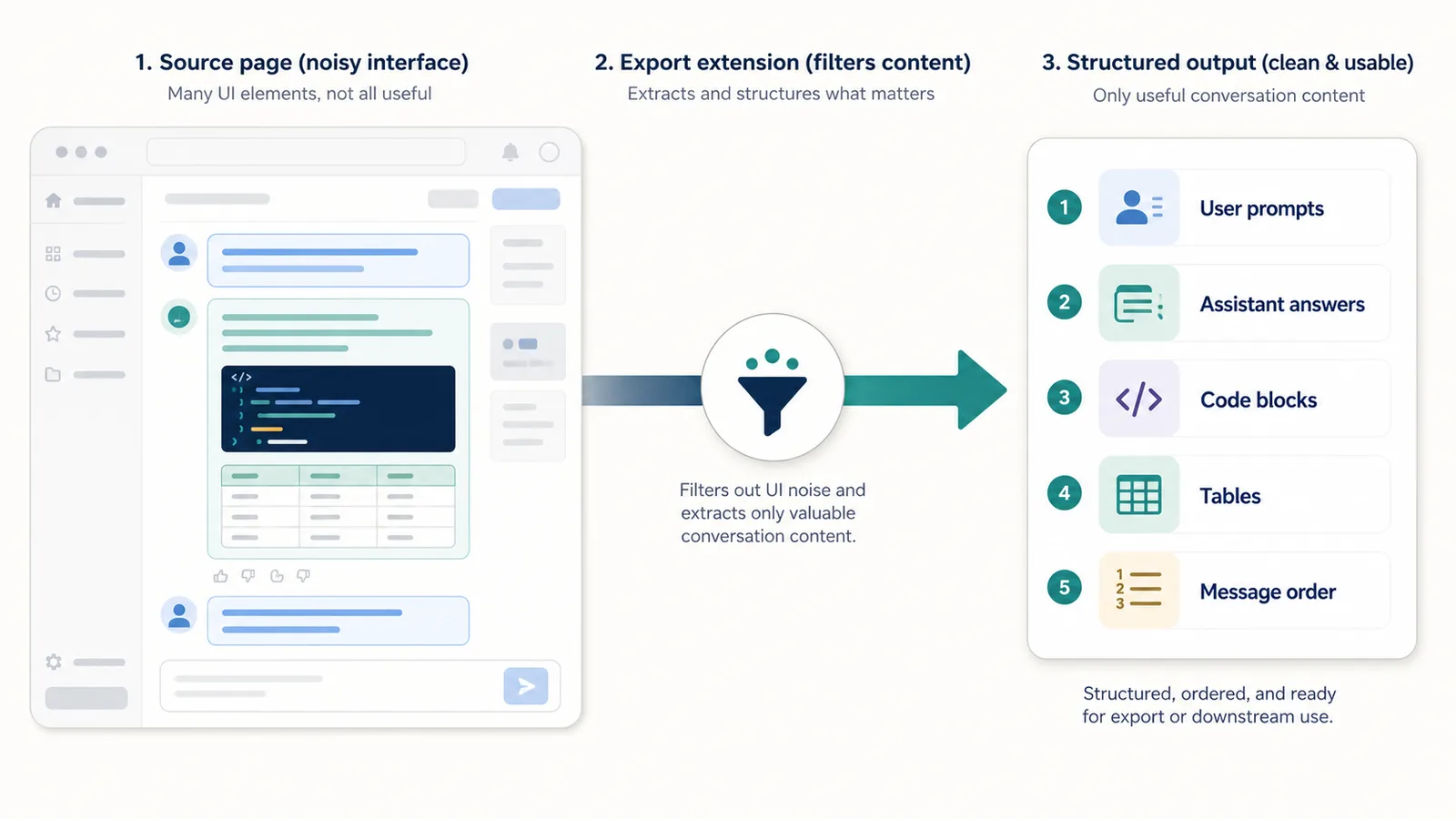
A ChatGPT export extension usually needs to identify which parts of the page are conversation content and which parts are interface noise.
It may look for patterns such as:
- message containers;
- user message blocks;
- assistant message blocks;
- text nodes;
- code blocks;
- tables;
- ordered message sequence;
- visible content inside the active conversation.
Then it needs to ignore things like:
- sidebar items;
- buttons;
- navigation;
- empty elements;
- repeated labels;
- unrelated UI text;
- hidden or duplicated nodes.
This is harder than it sounds.
A useful export is not just “all text on the page.”
A useful export should preserve the conversation structure.
A tiny conceptual example
This is a simplified example of the kind of DOM reading idea involved.
It is not production code and not specific to the current ChatGPT interface.
const messageNodes = document.querySelectorAll("[data-message-author-role]");

const messages = Array.from(messageNodes).map((node) => {
  return {
    role: node.getAttribute("data-message-author-role"),
    text: node.innerText.trim()
  };
});

console.log(messages);
The important idea is simple:
- Find message-like elements.
- Read their role or position.
- Extract the text.
- Preserve the order.
- Format the result.
Real export tools usually need more logic than this, especially for long conversations, code blocks, tables, lazy loading, and UI changes.
Why reading visible page content is different from account export
A browser extension that reads the active page is usually working with what is currently open in the browser.
That is different from account export.
| Workflow | What it usually focuses on |
|---|---|
| Active page export | One conversation currently open in the browser |
| Official account export | Broader account-level data |
| Shared link | Showing a conversation to someone else |
| Cloud backup tool | Storing or syncing exported content remotely |
This distinction matters for privacy and expectations.
A single-chat export extension should not claim to be a full account backup tool.
And a full account export workflow is not the same as saving one active conversation as reusable notes.
Related guide: How to Export a Single ChatGPT Conversation
Why browser permissions are needed
Browser extensions need permissions because the browser controls what an extension can access.
Permissions help answer questions like:
- Can the extension run on this page?
- Can it inject a script?
- Can it access the active tab?
- Can it save settings?
- Can it interact with a specific website?
- Can it use a browser API?
A ChatGPT export extension may need permissions to run a content script on the active ChatGPT page and extract the conversation.
Permissions are not automatically bad.
But they should match the purpose.
Official reference: Chrome Extensions: Declare permissions
What is activeTab?
The activeTab permission gives an extension temporary access to the currently active tab after the user invokes the extension.
For example, the user clicks the extension button while a ChatGPT conversation is open.
The extension may then get temporary access to that tab so it can run its export logic.
This can be more privacy-friendly than asking for broad access to many websites, depending on how the extension is built.
Official reference: Chrome Extensions: The activeTab permission
A simplified manifest example
A browser extension declares permissions in its manifest.
A simplified Manifest V3 example might look like this:
{
  "manifest_version": 3,
  "name": "Example Chat Export Tool",
  "version": "1.0.0",
  "permissions": ["activeTab", "scripting"],
  "background": {
    "service_worker": "background.js"
  },
  "action": {
    "default_popup": "popup.html"
  }
}
This example is intentionally minimal.
It shows the idea that an extension can request permission to interact with the active tab and inject scripts.
A real extension may need different permissions depending on its features.
activeTab vs host permissions
There are different ways an extension can get access to pages.
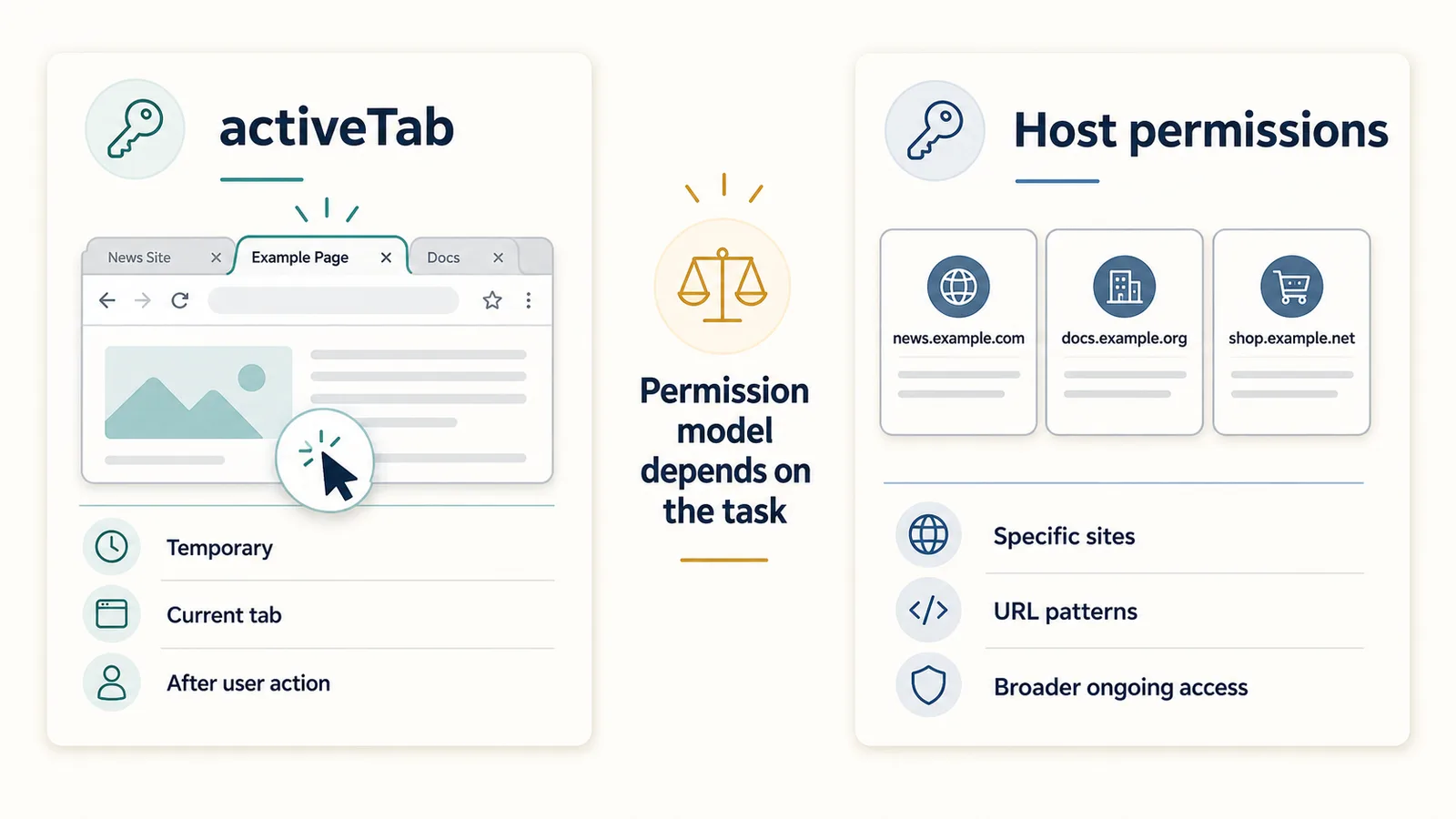
Two common concepts are:
| Permission type | Plain-English meaning |
|---|---|
activeTab | Temporary access to the current tab after user action |
| Host permissions | Access to specific websites or URL patterns |
For a simple active-page export tool, activeTab can be a narrower model.
For tools that need to run automatically on specific websites, host permissions may be used.
The right model depends on the product.
The important thing is that the permission model should be easy to explain.
What about the scripting permission?
The scripting permission allows an extension to inject or execute scripts.
For an export tool, this can be used to run a content script on the current page after the user starts the export.
A simplified background script might do something like this:
chrome.action.onClicked.addListener(async (tab) => {
  await chrome.scripting.executeScript({
    target: { tabId: tab.id },
    files: ["content-script.js"]
  });
});
This is not a complete export system.
It only shows the basic idea:
user action → script runs on the active tab.
Official reference: Chrome Extensions: chrome.scripting
What the extension can read
A content script can read page content that exists in the DOM and is accessible to the script.
For a ChatGPT export tool, this may include:
- visible message text;
- loaded earlier messages;
- assistant answers;
- user prompts;
- code blocks;
- tables;
- message order;
- headings or labels in the page.
But an extension does not automatically have perfect access to everything.
It may be limited by:
- what is currently loaded;
- how the page renders messages;
- lazy loading;
- virtual scrolling;
- shadow DOM or dynamic UI patterns;
- browser permissions;
- the extension’s own logic;
- changes in the ChatGPT interface.
This is why long-chat export can be technically difficult.
Why long chats are harder
A short conversation may be easy to read from the page.
A long ChatGPT conversation is harder because:
- earlier messages may not all be loaded at once;
- the page may use dynamic rendering;
- scroll position matters;
- message elements may appear or disappear;
- code blocks and tables need special handling;
- regenerated answers may create duplicates;
- the final page structure may change over time.
This is why reliable long-chat export is more than a simple “copy all text” button.
Related guide: Why Long ChatGPT Chats Are Hard to Reuse Later
Why ChatGPT export extensions break when the interface changes
A browser extension that reads a page depends on some assumptions about the page structure.
If the website changes its interface, those assumptions can break.
For example:
- message containers may change;
- role markers may change;
- code blocks may render differently;
- scrolling behavior may change;
- lazy loading may change;
- buttons or labels may move;
- old selectors may stop matching.
This does not always mean the extension was poorly built.
It often means the page changed.
Good export tools need maintenance because web interfaces are not fixed forever.
For a focused explanation of these failure modes, read Why ChatGPT Export Extensions Break When OpenAI Updates the Interface.
Local processing matters
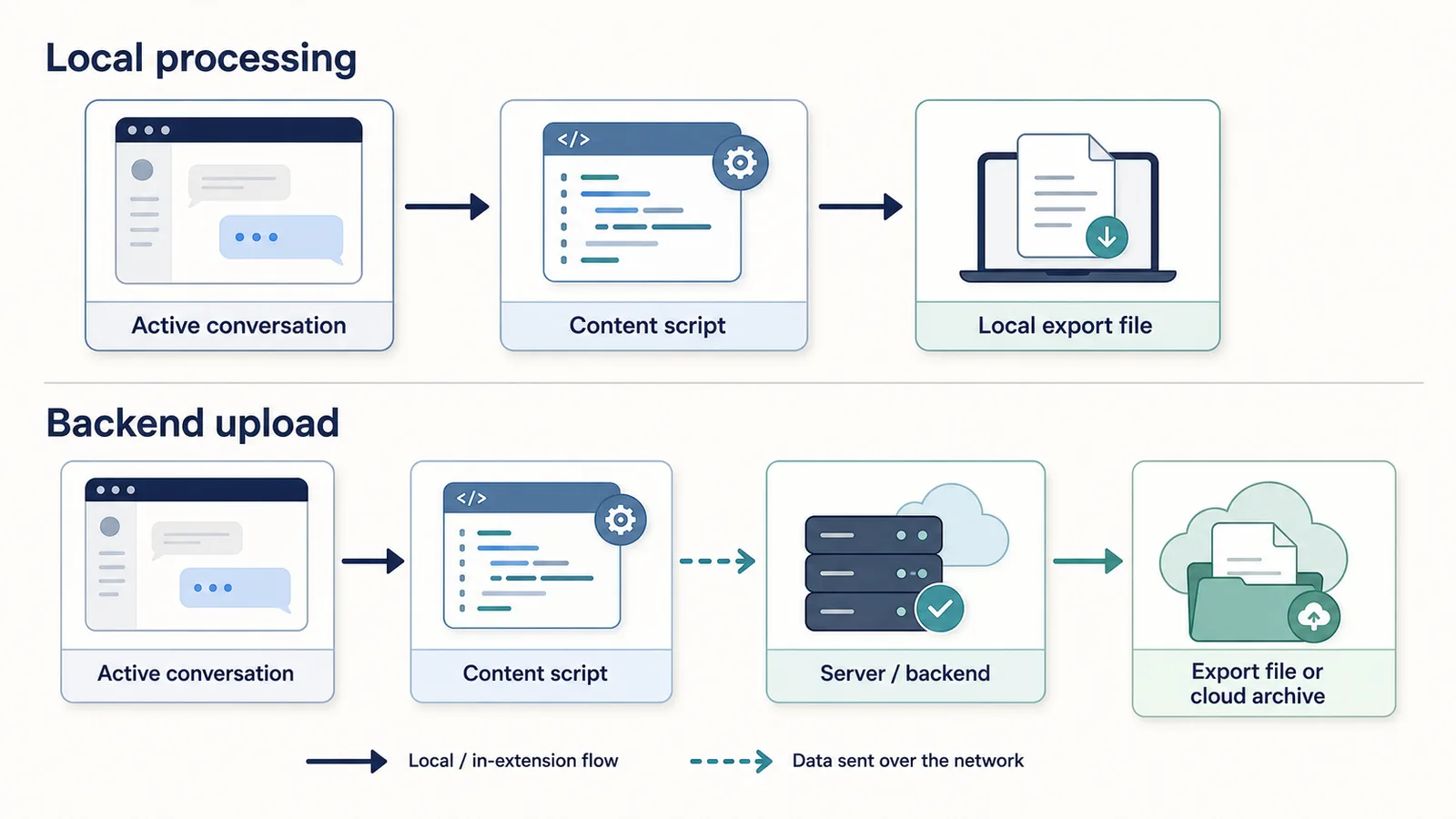
Local processing means the extension extracts and formats the conversation in the browser, without needing to upload the conversation to a backend server.
This matters because ChatGPT conversations can contain sensitive information.
A local workflow can reduce data exposure when the user only needs a file on their own device.
Local processing is useful for:
- private notes;
- one active conversation;
- simple TXT export;
- Q&A-style structure;
- avoiding unnecessary cloud storage;
- keeping the workflow understandable.
Local processing does not automatically prove that a tool is safe.
But it is a useful privacy model when the product does not need cloud sync, server-side processing, or team features.
Related guide: Is It Safe to Use a ChatGPT Export Extension?
Local processing vs backend upload
| Model | How it works | Trust question |
|---|---|---|
| Local processing | Conversation is extracted and formatted in the browser | Does the tool keep data local? |
| Backend upload | Conversation is sent to a server for processing or storage | Who receives, stores, and controls the data? |
Backend upload is not automatically wrong.
It can be useful for:
- sync;
- cloud backup;
- AI summarization;
- team collaboration;
- cross-device access;
- server-side search.
But if the tool is only meant to export one active chat, backend upload should be clearly explained and justified.
What a privacy-friendly active-page exporter should explain
A privacy-friendly ChatGPT export extension should make several things clear:
- what page it reads;
- when it reads the page;
- whether user action is required;
- whether it reads only the active conversation;
- whether conversation content is uploaded;
- what permissions it requests;
- what format it exports;
- whether it requires login;
- whether it stores anything;
- where the exported file goes.
The more understandable the data flow is, the easier it is for users to trust the tool.
What developers should think about
If you are building a ChatGPT export extension, the technical problem is not only extraction.
It is also trust.
Developer questions include:
- Can the extension use narrow permissions?
- Can it work from explicit user action?
- Can export happen locally?
- Can the output avoid interface noise?
- Can the tool preserve Q&A structure?
- Can it handle long conversations?
- Can it fail gracefully when the DOM changes?
- Can the privacy policy explain the data flow accurately?
A good export tool should be technically useful and easy to understand.
What users should think about
If you are using a ChatGPT export extension, you do not need to understand every implementation detail.
But you should understand the basics:
- the extension may need to read the active page;
- reading the active page usually happens through a content script;
- permissions should match the export task;
- local processing gives more direct control;
- cloud processing requires more trust;
- long chats are technically harder to export reliably.
If an extension cannot explain its access model in plain language, be careful.
How ChatGPT Session Saver fits
ChatGPT Session Saver is a local-first browser tool for saving one active ChatGPT conversation as clean Q&A-style TXT notes.
It focuses on the active conversation rather than full account export.
It is designed around:
- one active ChatGPT page;
- local-first export;
- clean Q&A-style text notes;
- TXT output;
- reusable notes;
- avoiding manual copy-paste cleanup.
It is not:
- a full account export tool;
- a cloud backup product;
- a PDF-first exporter;
- a JSON automation tool;
- a bulk historical archive.
This scope matters.
A tool that saves one active conversation can use a different privacy and permission model from a tool that stores every conversation in a cloud account.
Review the product’s current privacy policy and extension permissions before installation.
Common misconceptions
”If an extension can read a page, it can read everything in my account.”
Not necessarily.
An active-page exporter usually works with the conversation currently open in the browser. That is not the same as full account access.
”Permissions are always bad.”
No. Permissions are how browsers control extension access.
The problem is not permissions themselves. The problem is unnecessary or unexplained permissions.
”Local export means no risk.”
Not automatically.
Local export is a useful privacy model, but users should still check permissions, privacy policy, and product behavior.
”A content script is the same as a website script.”
Not exactly.
A content script runs on a page, but in Chrome it runs in an isolated environment separate from the page’s own JavaScript context.
”Exporting a chat is just copying text.”
For short chats, maybe.
For long conversations, reliable export means preserving order, roles, message boundaries, code blocks, tables, and context.
Part of the ChatGPT Export Guides
This guide is part of a practical series about saving, exporting, structuring, and reusing ChatGPT conversations.
FAQ
How can a browser extension read a ChatGPT page?
A browser extension can read an active ChatGPT page by running a content script on the page. The content script can inspect the page’s DOM and extract visible conversation content if the extension has the required permissions.
What is a content script?
A content script is JavaScript that an extension runs in the context of a web page. It can read or modify the page’s DOM while staying separate from the page’s own JavaScript environment.
What is the DOM?
The DOM, or Document Object Model, is the browser’s structured representation of a web page. Chat messages, buttons, headings, and other page elements exist as DOM nodes.
Does a ChatGPT export extension read my whole account?
Not necessarily. A single-chat export extension usually focuses on the active conversation currently open in the browser. This is different from account-level export.
Why do ChatGPT export extensions need permissions?
Extensions need permissions so the browser knows what pages or APIs the extension is allowed to access. Permissions should match the extension’s purpose and should be explained clearly.
What is the activeTab permission?
The activeTab permission gives an extension temporary access to the currently active tab after the user invokes the extension, such as by clicking its toolbar button.
Why does local processing matter?
Local processing matters because the extension can extract and format the conversation in the browser without needing to upload the chat to a backend server.
Why do ChatGPT export extensions break sometimes?
They can break when the ChatGPT interface changes. If message structure, DOM attributes, scrolling behavior, or rendering changes, an extension may need updates to find and export messages correctly.
Final thought
A browser extension does not need magic access to export a ChatGPT conversation.
It usually works by reading the active page through a content script, inspecting the DOM, and formatting the conversation into a file.
The important questions are not only technical.
They are also about trust:
- what can the extension access?
- when does it run?
- what does it extract?
- does it upload anything?
- does the permission model match the feature?
A good ChatGPT export tool should make those answers easy to understand.